Priority Guardian
Priority Guardian
Protect your priorities. Execute what matters.
Priority Guardian connects your declared priorities to your Google Calendar — so you can see where your time is actually going and stay accountable to what matters most.
Not a task manager. Not a habit tracker.
A clear-eyed mirror for your calendar — against your stated priorities.
Protect your priorities. Execute what matters.
Priority Guardian connects your declared priorities to your Google Calendar — so you can see where your time is actually going and stay accountable to what matters most.
Not a task manager. Not a habit tracker.
A clear-eyed mirror for your calendar — against your stated priorities.
Discover Priority Guardian
I FAQs · PRIORITY GUARDIAN MCP · CLAUDE
I FAQs · PRIORITY GUARDIAN MCP
Getting Started
Getting Started
Step 1 — Connect Priority Guardian in Claude
Go to Claude Settings → Connectors → find Priority Guardian→click Connect.
You'll be prompted to authorize via OAuth.
This creates your Priority Guardian account automatically — no separate sign-up needed.
Step 2 — Kick off onboarding
Tell Claude: "Set up my priorities in Priority Guardian."
Claude will guide you through declaring up to three priorities — name, type (deadline or flexible), targets, and calendar keyword (P1, P2, or P3) or use the dashboard widget to create them yourself.
Step 3 — Google Calendar
During onboarding, the Priority Guardian dashboard appears. From there, connect your Google Calendar with one click. Priority Guardian gets read-only access — it reads event titles and times
to compute hours against your priorities. It never writes to your calendar.
Once connected, tag your Google Calendar events with P1, P2, or P3 in the event title
— that's how Priority Guardian tracks the time you worked on your priorities.
Step 1 — Connect Priority Guardian in Claude
Go to Claude Settings → Connectors → find Priority Guardian→click Connect.
You'll be prompted to authorize via OAuth.
This creates your Priority Guardian account automatically — no separate sign-up needed.
Step 2 — Kick off onboarding
Tell Claude: "Set up my priorities in Priority Guardian."
Claude will guide you through declaring up to 3 priorities — name, type (deadline or flexible), targets, and calendar keyword (P1, P2, or P3) or use the dashboard widget to create them yourself.
Step 3— Google Calendar
During onboarding, the Priority Guardian dashboard appears. From there, connect your Google Calendar with one click. Priority Guardian gets read-only access — it reads event titles and times
to compute hours against your priorities. It never writes to your calendar.
Once connected, tag your Google Calendar events with P1, P2, or P3 in the event title
— that's how Priority Guardian tracks the time you worked on your priorities.
How it works
How it works
What Priority Guardian does
You declare up to 3 priorities. You tag your Google Calendar events with P1, P2, or P3. Priority Guardian tracks how your time maps to those priorities — and Claude acts as a productivity coach that helps you inspect what's working, surface patterns, and adapt each week.
Two priority modes:
Deadline priorities — delivery-based work. Tracked by milestones, hours invested, and pace against the deadline.
Flexible priorities — ongoing commitments. Tracked by weekly hour targets, streaks, and monthly results check-ins.
Requirements
A Google account with Google Calendar
You need to actively use Google Calendar to plan and schedule your work — tagging events with P1, P2, or P3 is how Priority Guardian tracks where your time goes
No paid account required
What Priority Guardian does
You declare up to 3 priorities. You tag your Google Calendar events with P1, P2, or P3. Priority Guardian tracks how your time maps to those priorities — and Claude acts as a productivity coach that helps you inspect what's working, surface patterns, and adapt each week.
Two priority modes:
Deadline priorities — delivery-based work. Tracked by milestones, hours invested, and pace against the deadline.
Flexible priorities — ongoing commitments. Tracked by weekly hour targets, streaks, and monthly results check-ins.
Requirements
A Google account with Google Calendar
You need to actively use Google Calendar to plan and schedule your work — tagging events with P1, P2, or P3 is how Priority Guardian tracks where your time goes
No paid account required
Prompts
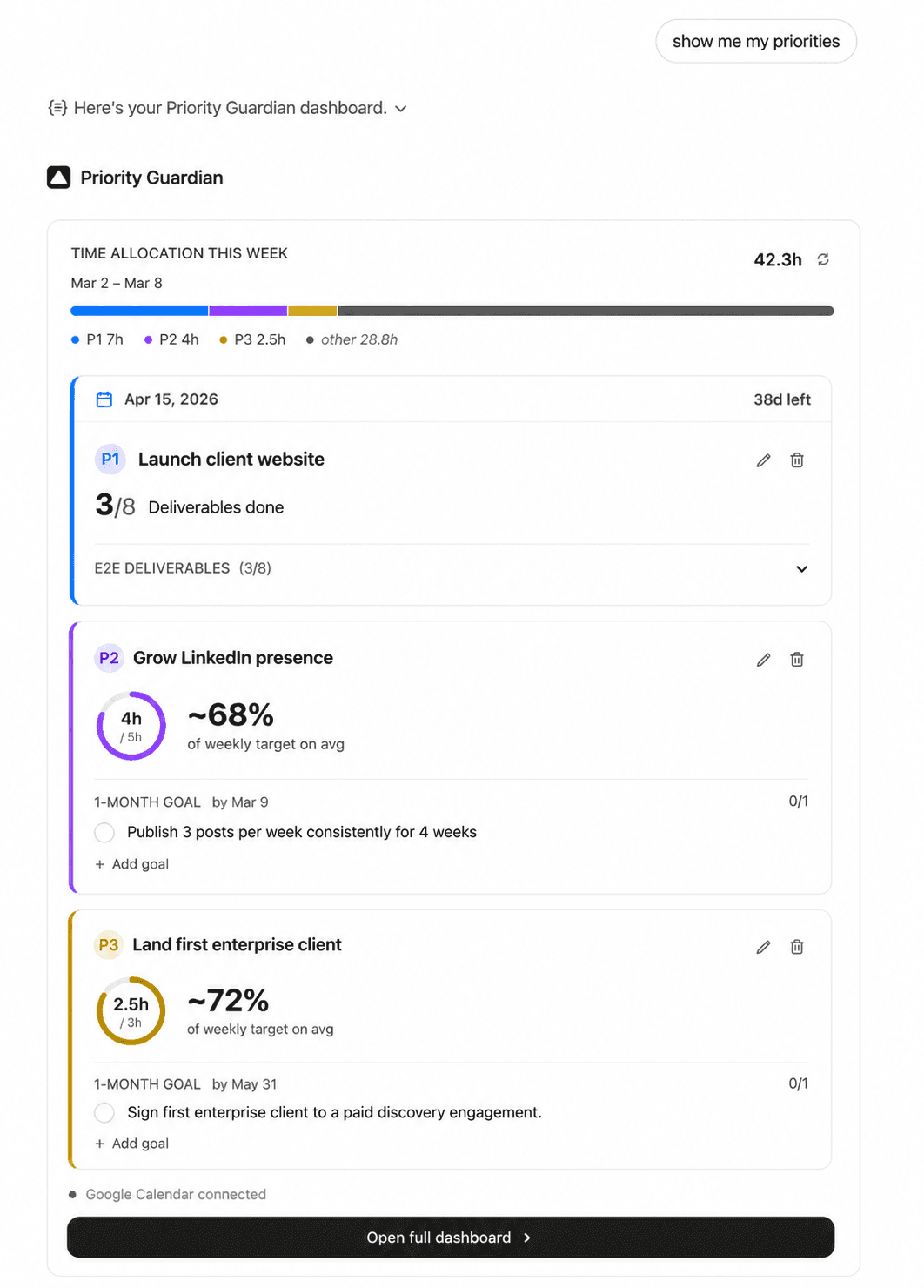
See your progress on all priorities at a glance:
"Show me my priorities."
Update or add a priority:
"I want to add a new deadline priority: launch my website
by September 30."
Discover patterns over time:
"How have I been keeping up with my priorities over the last few weeks?"
Prompts
See your progress on all priorities at a glance:
"Show me my priorities."
Update or add a priority:
"I want to add a new deadline priority: launch my website
by September 30."
Discover patterns over time:
"How have I been keeping up with my priorities over the last few weeks?"
Prompts
See your progress on all priorities
at a glance:
"Show me my priorities."
Update or add a priority:
"I want to add a new deadline priority: launch my website
by September 30."
Discover patterns over time:
"How have I been keeping up with my priorities over the last few weeks?"
Find out if you're on track this week:
"Show me my weekly report."
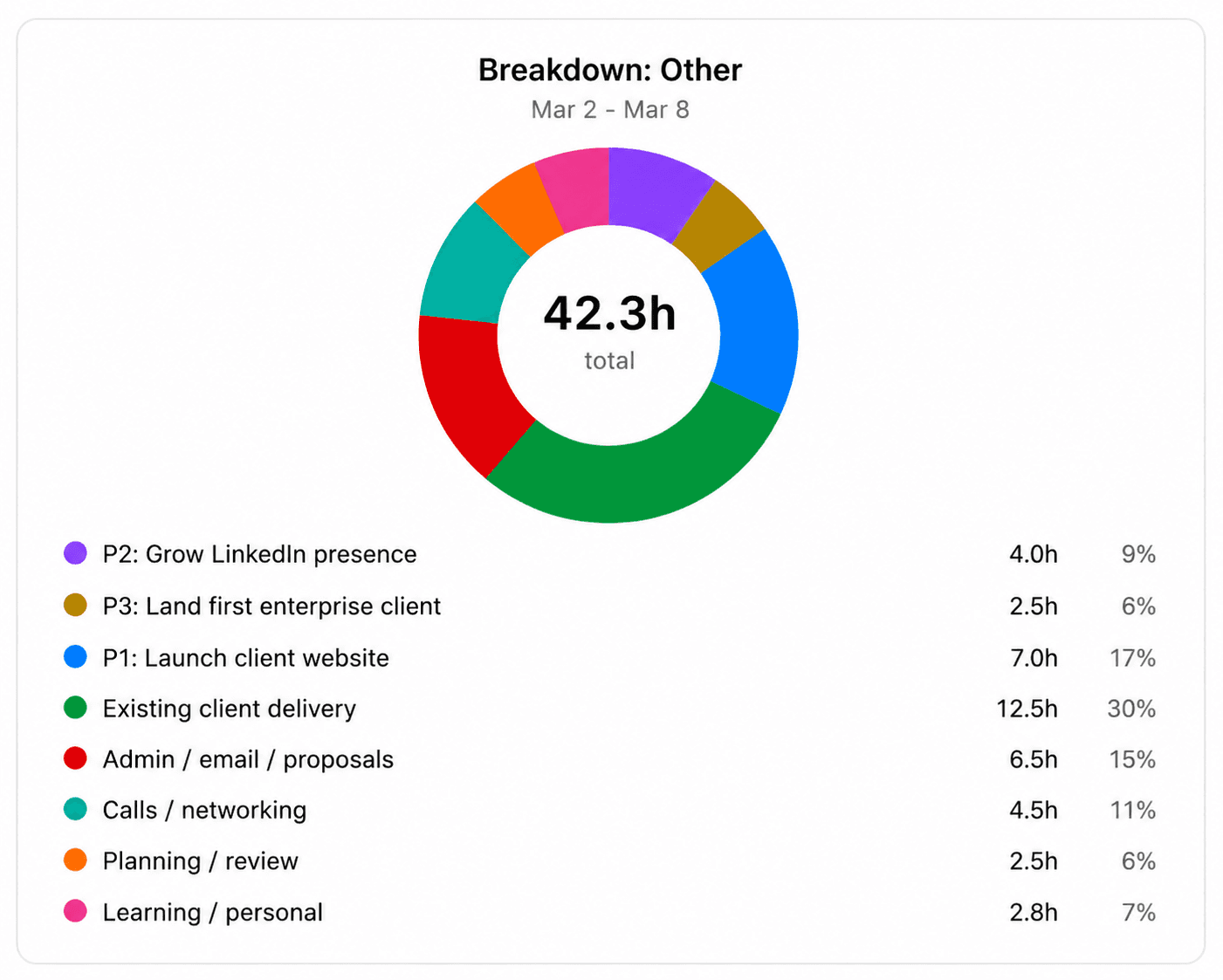
Dig in deeper to understand how
you spend your time:
"Break down where my non-priority
time went this week."
Inspect and adapt:
"What's working and what isn't — let's inspect what needs adjustment in my planning?"
Find out if you're on track this week:
"Show me my weekly report."
Dig in deeper to understand how
you spend your time:
"Break down where my non-priority
time went this week."
Inspect and adapt:
"What's working and what isn't — let's inspect what needs adjustment in my planning?"
Troubleshooting
Troubleshooting
I connected but my dashboard shows no data
You need to set up your priorities first. Tell Claude: "Set up my priorities in Priority Guardian."
My weekly report shows 0 hours for a priority
Check that your Google Calendar events are tagged with the correct keyword (P1, P2, or P3) in the event title. Priority Guardian matches by keyword — untagged events are counted as "Other" time.
I get an error when connecting
Try disconnecting and reconnecting from Claude Settings→ Connectors. If the problem persists, contact support.
My data from a previous session is missing
Priority Guardian stores your data persistently — it should always be available.
If you're on a new device, note that Claude-connected accounts
are tied to your session. Contact support if data appears missing.
I want to delete my account or data
Contact support@priority-guard.com. We respond within 24 hours.
I connected but my dashboard shows no data
You need to set up your priorities first. Tell Claude: "Set up my priorities in Priority Guardian."
My weekly report shows 0 hours for a priority
Check that your Google Calendar events are tagged with the correct keyword (P1, P2, or P3) in the event title. Priority Guardian matches by keyword — untagged events are counted as "Other" time.
I get an error when connecting
Try disconnecting and reconnecting from Claude Settings→ Connectors. If the problem persists, contact support.
My data from a previous session is missing
Priority Guardian stores your data persistently — it should always be available.
If you're on a new device, note that Claude-connected accounts
are tied to your session. Contact support if data appears missing.
I want to delete my account or data
Contact support@priority-guard.com. We respond within 24 hours.
Privacy & Security
Privacy & Security
Priority Guardian accesses your Google Calendar read-only. It reads event titles and times to compute hours — it never stores event content, attendee details, or descriptions beyond the current session computation.
Your data is hosted in the EU (Frankfurt, Germany). All communication is encrypted via HTTPS/TLS.
Priority Guardian is GDPR-compliant — you have the right to access, correct, and delete your data at any time.
Full details in the privacy policy.
Full privacy policy: fulfilling-productivity.com/pg-privacy-policy
Terms of Service: fulfilling-productivity.com/pg-terms-of-service
Priority Guardian accesses your Google Calendar read-only. It reads event titles and times to compute hours — it never stores event content, attendee details, or descriptions beyond the current session computation.
Your data is hosted in the EU (Frankfurt, Germany). All communication is encrypted via HTTPS/TLS.
Priority Guardian is GDPR-compliant — you have the right to access, correct, and delete your data at any time.
Full details in the privacy policy.
Full privacy policy: fulfilling-productivity.com/pg-privacy-policy
Terms of Service: fulfilling-productivity.com/pg-terms-of-service
Last Updated: May 2026
Last Updated: May 2026